
The short answer is that Starlink routers use both 2.4 GHz and 5 GHz frequencies simultaneously. By default, the system employs a feature called band steering, which merges both bands into a single network name, automatically assigning your device to the frequency that offers the best balance of speed and stability.
When you first unbox that sleek white dish and plug in the router, you might notice you only see one Wi-Fi network to join. Don’t let that fool you into thinking you’re missing out on high-speed 5 GHz performance. SpaceX designed the Starlink router to be as "hands-off" as possible for the average user.
However, for those of us who like to tinker with our home labs or need specific devices to stay on a high-bandwidth channel, understanding how these frequencies interact is the key to getting the most out of your satellite internet.
Why does Starlink use both 2.4 GHz and 5 GHz?
In the world of wireless networking, there is always a trade-off between how far a signal can travel and how much data it can carry. Starlink utilizes a dual-band router because no single frequency is perfect for every square inch of your home.
The 2.4 GHz band is the old reliable workhorse. It has longer waves that can easily pass through drywall, wooden doors, and even brick to a certain extent. If you are sitting in a bedroom two walls away from your router, 2.4 GHz is likely what’s keeping you connected.
The downside? It’s slower and very crowded. Everything from your neighbor's old router to your microwave oven operates in this space.
On the flip side, the 5 GHz band is the high-performance sports car. It offers significantly faster data rates, which is crucial when you want to take advantage of Starlink’s peak download speeds. However, these shorter waves struggle with obstacles.
If you move behind a heavy chimney or go out to the garage, the 5 GHz signal might drop off entirely. By offering both, Starlink ensures that your smartphone stays connected whether you’re standing next to the router or mowing the back lawn.
Understanding the difference in Starlink performance
When we look at how these frequencies affect your daily browsing, it comes down to throughput versus reach. I’ve spent a lot of time testing different router placements, and the difference is night and day. On the 5 GHz band, I can often max out the satellite’s current capacity, hitting speeds well over 150 Mbps.
When my device switches to 2.4 GHz, that usually drops to 30-50 Mbps.
| Feature | 2.4 GHz Frequency | 5 GHz Frequency |
|---|---|---|
| Max Speed | Lower (Approx. 50-100 Mbps) | Higher (Up to 800+ Mbps) |
| Signal Range | Excellent (Longer distances) | Shorter (Better for same-room use) |
| Wall Penetration | Strong | Weak |
| Interference | High (Microwaves, Bluetooth) | Low |
| Best For | Smart home bulbs, distant rooms | Gaming, 4K streaming, Zoom calls |
If you are curious about how these physical waves behave over distance, you might want to look into 24ghz vs 5ghz range in meters to see the actual drop-off points. It really puts into perspective why your backyard Wi-Fi feels so much more sluggish than your living room connection.
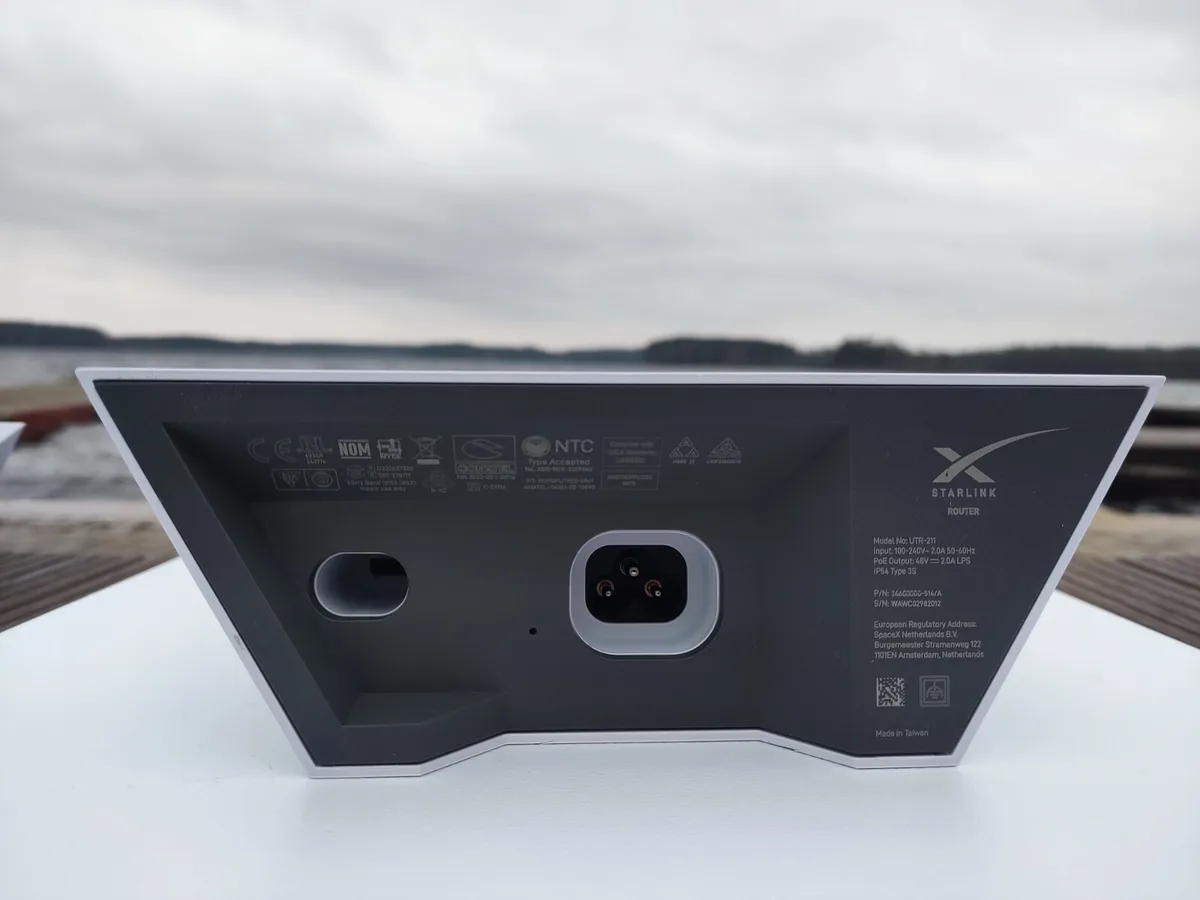
Image source: Bing (Web (fair-use with source credit))
How to change Starlink from 2.4 GHz to 5 GHz
A common question I get is: "How do I force my laptop to stay on 5 GHz?" Because Starlink merges these bands by default, your device makes the choice, and sometimes it makes a bad one. To take control, you have to "split" the bands in the Starlink settings.
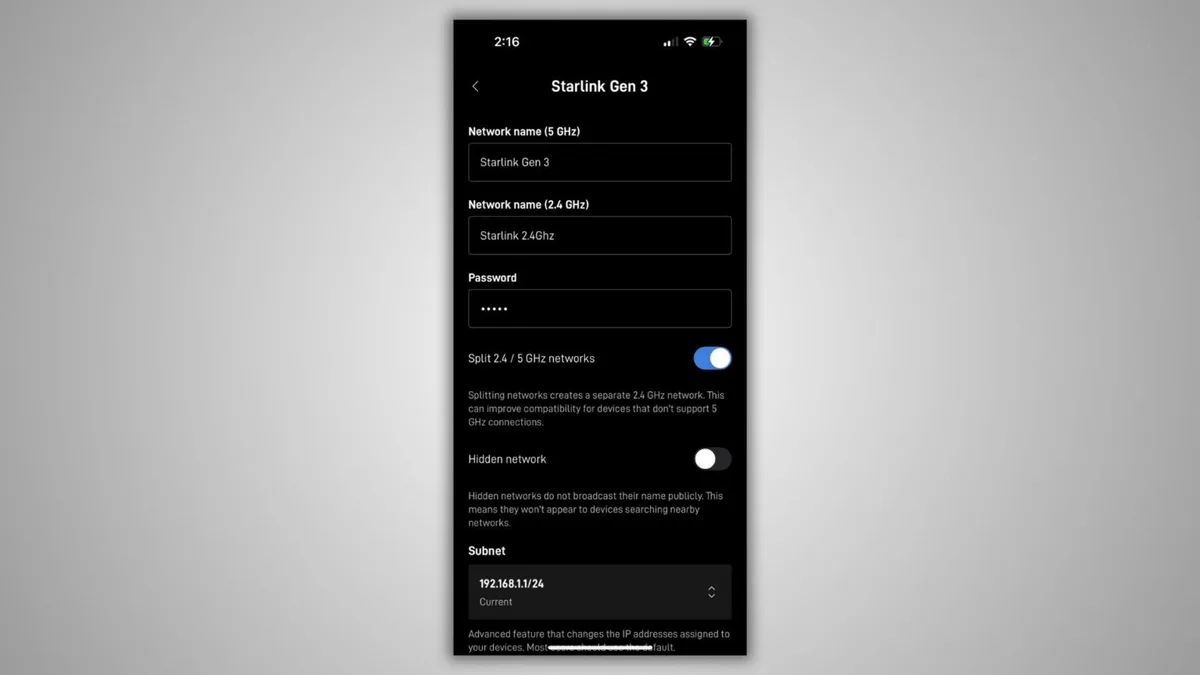
Image source: Bing (Web (fair-use with source credit))
Here is the step-by-step process to separate your networks:
- Open the Starlink App on your mobile device.
- Tap on the Settings gear icon.
- Select Network.
- Look for the toggle that says Split 2.4 / 5 GHz Settings.
- Toggle it to the "On" position.
- You will now be prompted to give each band a unique name (e.g., "Starlink_2.4" and "Starlink_5").
- Save your settings and wait for the router to reboot.
Once this is done, you can manually connect your gaming console or TV to the 5 GHz network to ensure it never gets throttled by the slower band. This is a huge upgrade for anyone dealing with lag during intense online matches. While you’re tweaking your network, it’s also a good time to make sure your hardware is running fresh; occasionally, a simple shutdown vs restart on Windows 11 Lenovo or other laptops can clear out network driver glitches that make the 5 GHz band invisible.
Should you split the bands or leave them combined?
This is the great debate among Starlink users. For most people, leaving the bands combined (Smart Steering) is the way to go. The router is generally smart enough to put your high-demand devices on 5 GHz and your smart lightbulbs on 2.4 GHz.
However, if you have a lot of older smart home gear, you might run into trouble. Many cheap smart plugs only work on 2.4 GHz and get "confused" when they see a combined network name. In that case, splitting the bands is a necessity.
I personally prefer keeping them separate because I want to know exactly what kind of pipe my workstation is using.
If you're using your phone as a backup, you'll notice similar logic applies there too. Deciding 24 ghz vs 5ghz hotspot which is better depends entirely on whether you're sitting right next to your phone or trying to share data across the room.
The evolution of Starlink hardware
Starlink hasn't stood still. The original "Circular" dish came with a router that had an Ethernet port. The newer "Standard Actuated" (rectangular) Gen 2 model removed the Ethernet port, forcing everyone onto Wi-Fi unless they bought an adapter.
This made the 2.4 GHz vs 5 GHz choice even more important because Wi-Fi became the only way to communicate with the dish.
The latest Gen 3 (Standard) router has upped the game again, supporting Wi-Fi 6. This allows for even better handling of multiple devices across both bands. We’ve come a long way since the early days of wireless networking.
When you look at 1950s technology vs today, the idea of beaming gigabits of data from a satellite to a dual-band router in a rural cabin would have sounded like absolute sorcery. Even looking back at the jump from 2000 vs 2020 technology, the sheer density of data we can push through the 5 GHz band is staggering.
Factors that interfere with your Starlink Wi-Fi signal
It’s not just about the frequency; it’s about the environment. Since Starlink relies on a clear view of the sky, you’ve already handled the "space" side of the equation. But inside your home, the 5 GHz signal faces many enemies:
- Water: Large fish tanks or even heavy piping in walls can absorb 5 GHz signals.
- Mirrors: The metallic backing on large mirrors acts as a shield, bouncing the signal away from where you want it.
- Density: Concrete walls or stone fireplaces are notorious for killing 5 GHz range.
If you find that your 5 GHz signal is weak, consider the placement of the router. According to IEEE standards, placement and interference management are just as critical as the hardware itself. Elevating the router and keeping it away from other electronics can drastically improve the reach of that high-speed band.
My personal experience with Starlink bands
When I first set up my Starlink Gen 2, I was frustrated. My phone kept dropping to 2.4 GHz while I was in the kitchen, making my YouTube videos buffer. The router thought the 5 GHz signal was too weak, so it "helped" me by switching to the slower band.
I decided to split the networks and named them differently. The result? I realized that even a "weak" 5 GHz signal was giving me 80 Mbps, which was far better than the 20 Mbps I was getting on a "strong" 2.4 GHz signal.
By manually locking my devices to the 5 GHz band, I stopped the constant switching and enjoyed a much more stable experience.
If your devices are acting sluggish, don't just blame the satellite. Sometimes, a quick refresh of your tech can help. I’ve found that even a restart vs power off Android cycle can help the phone "see" the 5 GHz band more clearly after you’ve made changes to the router settings.
It sounds basic, but in the world of networking, a clean slate is often the best troubleshooting step.
Boosting your 5 GHz range
If you live in a large house, the Starlink router’s built-in 5 GHz reach might not be enough. You have two real options:
- Starlink Mesh Nodes: These are plug-and-play units that extend both bands throughout your home.
- Third-Party Routers: By using the Starlink Ethernet Adapter (for Gen 2) or the built-in ports (on Gen 3), you can bypass the Starlink router entirely and use a high-end gaming router with massive antennas.
Using a third-party system allows you to fine-tune the 5 GHz channels to avoid interference from neighbors. If you are comparing how different manufacturers handle these signals, checking out 5ghz wifi range vs 24 ghz huawei can give you an idea of how varied the hardware performance can be across the industry.
FAQ: Common questions about Starlink frequencies
Does Starlink support Wi-Fi 6?
The newer Gen 3 Starlink routers support Wi-Fi 6 (802.11ax), which is much more efficient at managing the 2.4 GHz and 5 GHz bands simultaneously. The Gen 2 routers support Wi-Fi 5 (802.11ac).
Will 5 GHz work through walls?
It works through standard drywall, but the speed drops significantly with every wall the signal passes through. For best results, use 5 GHz in the same room as the router.
Can I turn off 2.4 GHz entirely?
No, the Starlink router doesn't allow you to completely disable the 2.4 GHz radio. You can split them and simply ignore the 2.4 GHz network, but the signal will still be present.
Which frequency is better for Starlink gaming?
Always use 5 GHz for gaming. The lower latency (ping) and higher throughput are essential for a smooth experience. If you're too far for 5 GHz, consider an Ethernet connection.
Does Starlink use 6 GHz (Wi-Fi 6E)?
As of the current Gen 3 hardware, Starlink does not support the 6 GHz band found in Wi-Fi 6E or Wi-Fi 7. It sticks to the standard dual-band 2.4/5 GHz setup.
Getting your Starlink connection dialed in is one of the most satisfying parts of modern rural living. Once you understand that the router is juggling two different frequencies, you can start making the choices that fit your home's layout. Whether you let the router do the heavy lifting or you split the bands to take total control, having that high-speed 5 GHz lane open is what makes satellite internet finally feel like the future.
Keep experimenting with your setup, and don't be afraid to move that router around until you find the sweet spot for your favorite lounging chair!

I’m the tech enthusiast behind FixTechEasy. I know how stressful it is when your technology doesn’t cooperate. My goal here is to take the headache out of troubleshooting by breaking down complex tech problems into simple, easy-to-follow steps. From quick fixes to deep-dive guides, I’m here to help you get back to what matters most. Let’s get your tech working for you, not against you.